

Managing printer drivers in Citrix environments have been a pain for a long time. Luckily the Citrix Universal Printer (CUP) solves all these problems leveraging the Citrix Universal Print Driver. I have big customers relaying only on this one printer.
The Citrix Universal Printer is an auto-created printer object that uses the Citrix Universal Print Driver and is not tied to any specific printer defined on the client. Once implemented, it is available in all sessions that use the 32-bit Windows client.
Citrix Universal Print Driver Configuration :
To configure CUP for Citrix XenApp 5 open XenApp Advanced Configuration and right click Policies to create a new policy.
HDX Plug-n-Play – Printing – Client Printers – Auto-creation – Enabled – Do not auto-create client printer

Legacy client printers – Enabled – Create dynamic session-private client printers

HDX Plug-n-Play – Printing – Session printers – Enabled
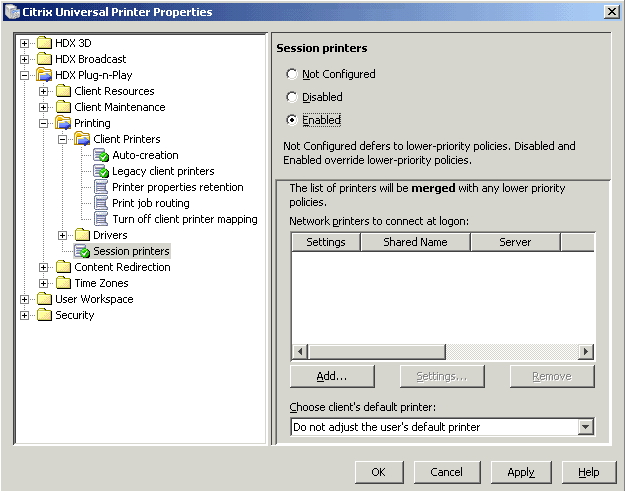
Right click the newly created policy – Apply this policy to… – Select All Servers or e.g Domain Users
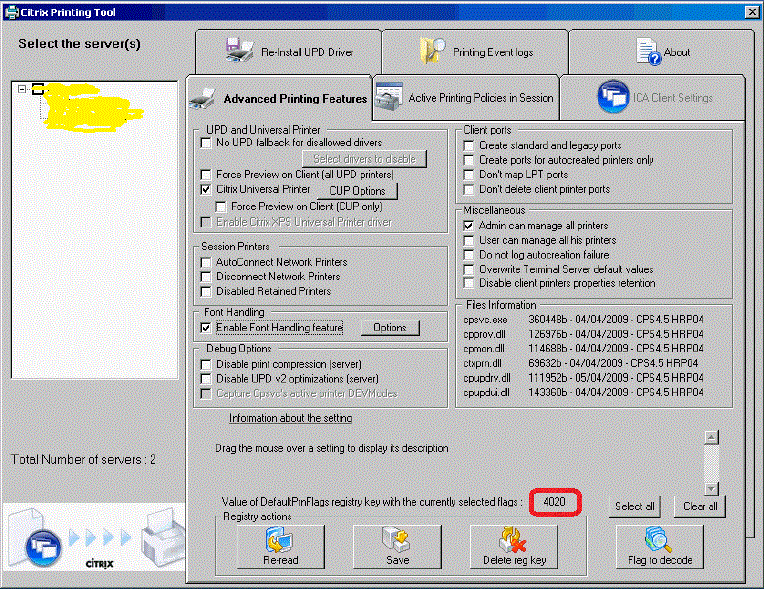
This Citrix Policy will now create the CUP Printer, but to set the properties of the CUP Printer you will need to download and run Citrix Printing Tool 3.1
Configure you preferred settings and write down the “Value of DefaultPrnFlags registry key…”. You could select to save this registry key to all servers, but the preferred method is to use Group Policy to force these settings. This way all the servers in your OU will have the same settings, even when somebody unfortunately change it or servers are reinstalled.
Make sure to you enable the Citrix Universal Printer option.
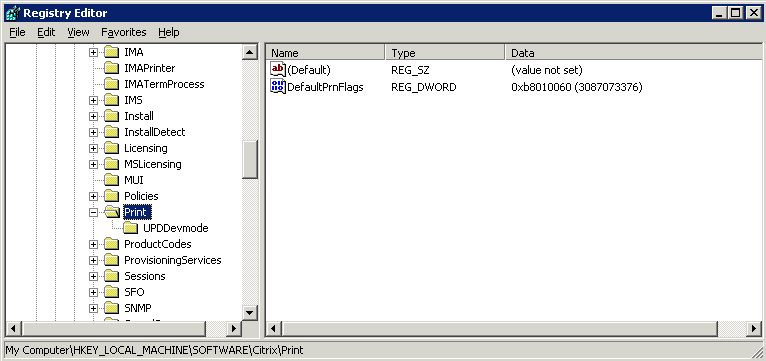
Check out this article for instruction : Terminal Server & XenApp Tuning Tips Group Policy v1.1. This current version have two registry keys for DefaultPrnFlags, please delete one of them and change the remaining one with the value you have written down. If you have changed CUP Options like quality and paper size the registry key needs to be created manually in the GPO. The key is located under HKLM\Software\CitrixPrintUPDDevMode
Resources :
Worked like a charm, can you please fix the first pic the link seems to be broken.
Thanks Ada,
The broken image has been fixed
I came across your article hoping that it will solve my issue, but unfortunately it did not.
Users connect through citrix via web interface (terminal services) their printers get auto created users can print, yet certain applications (the ones we need them to) when selecting their local printer nothing happens, I followed your instructions but when attempting to print their local printer is not present, do you have any advice?
Hi Chris,
First of all, do this work with native applications like Office ?
Have you tried newer versions of the ICA Clients as well as running XenApp 5 Hotfix Rollup Pack 6. Some issues have been fixed.
Office applications print without issues, my stock reports created by crystal reports print without issues, my erp software which also uses crystal reports do not print. I loaded these specific reports into crystal report and compared the printer settings to the stock reports (which do print), and made them match identically. And I still can not get the system to print them.
forgot to add this into the equation.
Users can print to the HP1020, users CANNOT print to the HP2200.
My printer at home which I am testing out is a Canon IP4700, it follow the exact same printing issues as what the HP2200 is experiencing.
Should i manually add these drivers onto the server? I have been relying on them to auto-create so far, which all other computers have been doing. If i manually add the driver in the system looks for the printer, yet it is not attached to the network, because it’s on the remote side how should this be setup?
You could try to add the driver, but we have customers with 5000 CCU around the world and do only leverage the Citrix Universal Printer. If this is a application problem, I would contact Citrix Support or post a thread at the Citrix Support Forum. Also remember to ask @CitrixSupport on Twitter to take a look at your thread.
Hello !
Your “How To” is great and it’s working fine.
But: Do you have any kind of stragety with ThinClients and UPD printer mapping ? I got one customer with one big step of switching from fat clients (UPD at the Citrix Sessions) to WYSE ThinClients and Default Desktop (2008 R2 W7 Desktop Feature). Keep up the great work. I’ll use your “Donate” button.
Kindly Regards from Germany,
Frankie
Hi Frankie,
I would have tried using Citrix Policy to assign network printers based upon IP-address.
Suggestion(s) for x64 farms? Apparently the Citrix Printing Tool is not compatible with x64 systems…
Hi Halve, this will be in the upcoming Citrix XenApp 6 Video Training course scheduled for next month. Make sure to sign up at xenapptraining.com
Is this for XenApp 5 or XenApp 6? I don’t have these options on my XenApp 5 farm and I have the HDX update installed. And XenApp 6 doesn’t have the Advanced Configuration Console anymore.
Thanks
Hi Jeff, this is for XenApp 5. The console could have a different name depending on which version you are running.
On XenApp 6 these settings are defined in the new Citrix Policies, please sign up for my new Citrix XenApp 6 Video Training Course to learn this a much much more.
Hi,
i am using XA5, PS4.5 with Rollup R07, now can you suggest me how can i connect my client printer with my citrix session.
what to do? i have spent almost two or three weeks on solving this issue but no luck .pls help me or suggest me.
Hi Imran, I’ve seen the same at a customer site this week with XA5 HFRP07 so maybe there’s a bug. Have you followed the instruction step-by-step? Maybe I need to contact Citrix Support regarding this issue.
Hi,
Iam Using XenApp 5.0 For my XXXXX UPD testing,In One case I have installed driver in both Citrix server and Client PC ,after importing the Client PC to server ,in apllication iam getting 2 printers one is reflecting from Client PC one is from Citrix server and one more printer iam seeing And In comment it shows Auto Create Client Printer with zunk charecters…can some body tell which one reflecting from Client PC
Hi Ram, The Auto Create Client Printer with some more characters are the printer you’re looking for.
can Citrix UPD work with Linux thin clients.
No, this is only supported on Windows clients. You’ll need a 3rd party print solution.
good article
Thanks Feliz
Hi Eirik
I am new to citrix, could you please tell me from where i want to start to learning citrix and i am interested in citrix xenapp.
please help me.
Hi Madhu, the best place to learn is this blog + my free video course : http://xenapptraining.com
Thank you very much for reply Eirik,
just now i see your great video i am eagerly waiting for another videos.Where i find another videos.
The will be sent out every 3 days. If you want full access today check out http://xenapptraining.com/membership
Hi Eirik,
I hope you are doing well,
I want to know about citrixedgesight for xenapp5.0 from basic to advanced, help me please..
Thanks & Regards
Madhu.y
DO you have a working config for Xenapp 6.5 (64bit)
Yes, that’s a part of my course – http://xenapptraining.com (or just submit your details on the top of this page).
Hi,
How to configure Universal printing on XenApp 6.5 Windows 2008. Will appreciate your quick feedback.
Thanks …
Hi i have a user using xendesktop 5.6 and when ever she prints a ms word document the first page is not getting printed and the rest all are printing.and she is using a n/w printer where remaining pdf docs every thing prints fine. can you please help me in that. Thanks in advance.
Hi,
I would like know the Details for citrix Xenapp 6.5 UPD not supported Printer
were do i get the above details.
Please kindly advise me
Regards
sravan
Hi Ram,
I think Wait for printers to be created policy must solve your first page print problem. This option lets the session halt until all user printers get created. I am not 100% sure on this but just a suggestion to try.
thanks,
-Sandeep