

Pinning and unpinning icons to the Start Menu or Taskbar can be a pain on Windows 2008 or Windows 7. After doing some research I came up with an how to that I wanted to share with you today.
The first problem I got was that the Pin to Taskbar / Start Menu was missing from the menu.

It seems like it’s not possible to do this when the Start Menu are redirected to a network drive. Simply copy the icons you want to your Desktop.

Pin the icons to the locations you want so the settings get’s saved to registry.

Now head into the %AppData%\Microsoft\Internet Explorer\Quick Launch\User Pinned folder and copy the icons to a network share you can use in Group Policy Preferences.
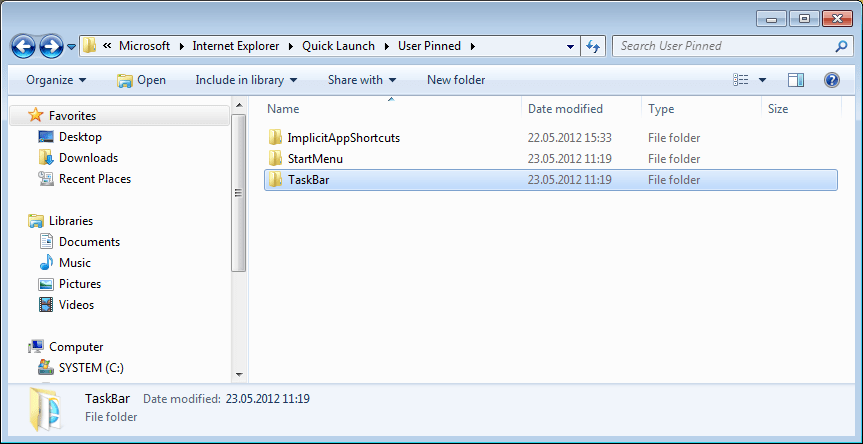
Define the folders you want to copy

Pinning icons to the users Start menu contains of 2 components, the icons in the User Pinned folder and in registry. Open registry and export HKCU\Software\Microsoft\Windows\CurrentVersion\Explorer\StartPage2

I’m using the fantastic tool Reg2XML to convert registry files to XML.
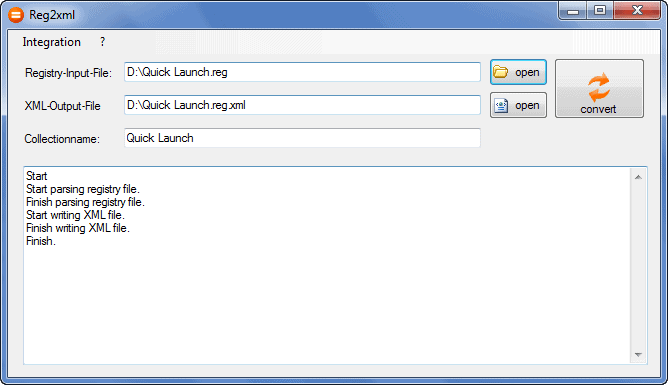
The last step is to import the XML file to Group Policy Preferences.
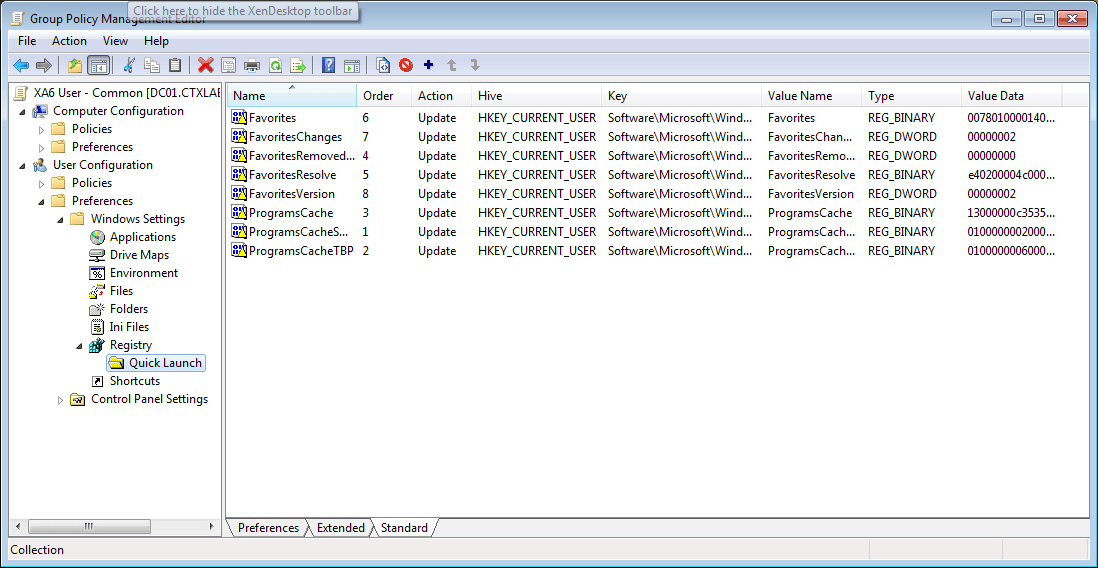
Thanks Microsoft for making this so easy! There’s also a custom PowerShell module you can use to pin / unpin icons, but this didn’t support command line switches. What I mean with this is that I couldn’t add icons for applications like Notes where you have Notes.exe =H:\Notes\Data\Notes.ini in the path.
Are you doing this in other ways? Please share with the Citrix Community by leaving a comment below.
I have used this script to remove all default shortcuts and add Internet Explorer + Word and Excel
You can edit it to add more shotcuts.
*******************************
‘=-=-=-=-=-=-=-=-=-=-=-=-=
‘ CONSTS
‘=-=-=-=-=-=-=-=-=-=-=-=-=
Const HKEY_CLASSES_ROOT = &H80000000
Const HKEY_CURRENT_USER = &H80000001
Const HKEY_LOCAL_MACHINE = &H80000002
Const HKEY_USERS = &H80000003
Const HKEY_CURRENT_CONFIG = &H80000005
Const CSIDL_COMMON_PROGRAMS = &H17
Const CSIDL_PROGRAMS = &H2
‘=-=-=-=-=-=-=-=-=-=-=-=-=
‘ OBJECTS
‘=-=-=-=-=-=-=-=-=-=-=-=-=
Set objRegistry = GetObject(“winmgmts:\\.\root\default:StdRegProv”)
Set objFSO = CreateObject(“Scripting.FileSystemObject”)
Set objApplication = CreateObject(“Shell.Application”)
Set objAllUsersPrograms = objApplication.NameSpace(CSIDL_COMMON_PROGRAMS)
Set objUserPrograms = objApplication.NameSpace(CSIDL_PROGRAMS)
‘=-=-=-=-=-=-=-=-=-=-=-=-=
‘ VARIABLES
‘=-=-=-=-=-=-=-=-=-=-=-=-=
Dim arrSubValues, arrDeleteApps, arrPinApps, strAllUsersProgramsPath
strAllUsersProgramsPath = objAllUsersPrograms.Self.Path & “\”
strUserProgramsPath = objUserPrograms.Self.Path & “\”
arrDeleteApps = Array(“displayswitch.lnk”, “remote desktop connection.lnk”, “sticky notes.lnk”, “snipping tool.lnk”, “calculator.lnk”, “paint.lnk”, “xps viewer.lnk”, “windows fax and scan.lnk”, “Magnify.lnk”)
Call Main
Sub Main()
DeleteStartMenuApps HKEY_CURRENT_USER, “”, arrDeleteApps
DoVerb “Pin to Start Menu”, strUserProgramsPath & “Internet Explorer.lnk”
‘Get the version of Office installed, so that we can pin it to the start menu
If IsProgramInstalled(objRegistry, “Microsoft Office Enterprise 2007”) = TRUE Then
DoVerb “Pin to Start Menu”, strAllUsersProgramsPath & “Microsoft Office\Microsoft Office Word 2007.lnk”
DoVerb “Pin to Start Menu”, strAllUsersProgramsPath & “Microsoft Office\Microsoft Office Excel 2007.lnk”
Else
DoVerb “Pin to Start Menu”, strAllUsersProgramsPath & “Microsoft Office\Microsoft Word 2010.lnk”
DoVerb “Pin to Start Menu”, strAllUsersProgramsPath & “Microsoft Office\Microsoft Excel 2010.lnk”
End If
End Sub
‘=-=-=-=-=-=-=-=-=-=-=-=-=
‘ FUNCTIONS AND SUBS
‘=-=-=-=-=-=-=-=-=-=-=-=-=
Function DoVerb(strVerb, strPath)
On Error Resume Next
strFolder = objFSO.GetParentFolderName(strPath)
strFile = objFSO.GetFileName(strPath)
Set objFolder = objApplication.NameSpace(strFolder)
Set objFolderItem = objFolder.ParseName(strFile)
For Each ItemVerb In objFolderItem.Verbs
If StrComp(Replace(ItemVerb.Name, “&”, “”), strVerb, vbTextCompare) = 0 Then
ItemVerb.DoIt
Exit Function
End If
Next
On Error Goto 0
End Function
Sub DeleteStartMenuApps(hDefKey, sSubKeyUser, arrDeleteApps)
If Len(sSubKeyUser) > 0 Then
sSubKeyName = sSubKeyUser & “\Software\Microsoft\Windows\CurrentVersion\Explorer\UserAssist”
Else
sSubKeyName = “Software\Microsoft\Windows\CurrentVersion\Explorer\UserAssist”
End If
objRegistry.EnumKey hDefKey, sSubKeyName, arrSubKeys
If IsArray(arrSubKeys) Then
For i = 0 to UBound(arrSubKeys)
sTempSubKeyName = sSubKeyName & “\” & arrSubKeys(i) & “\Count”
objRegistry.EnumValues hDefKey, sTempSubKeyName, arrSubValues
If IsArray(arrSubValues) Then
For m = 0 to UBound(arrSubValues)
For n = 0 to UBound(arrDeleteApps)
If InStr(UCase(RunROT13(arrSubValues(m))), UCase(arrDeleteApps(n))) > 0 Then
objRegistry.DeleteValue hDefKey, sTempSubKeyName, arrSubValues(m)
End If
Next
Next
End If
Next
End If
End Sub
Function RunROT13(strInput)
For i = 1 to Len(strInput)
iChr = Asc(Mid(strInput, i, 1))
If (iChr >= 65 and iChr = 97 and iChr = 78 and iChr = 110 and iChr <= 122) Then
strOutput = strOutput & Chr(iChr -13)
Else
strOutput = strOutput & Chr(iChr)
End If
Next
RunROT13 = strOutput
End Function
Function IsProgramInstalled(objRegistry, strProgramDisplayName)
intRegistryHive = HKEY_LOCAL_MACHINE
strRegistryKey = "SOFTWARE\Microsoft\Windows\CurrentVersion\Uninstall"
objRegistry.EnumKey intRegistryHive, strRegistryKey, arrSubkeys
IsProgramInstalled = FALSE
For Each strSubkey In arrSubkeys
strDisplayName = ReadRegistryValue(objRegistry, "STRING", intRegistryHive, strRegistryKey & "\" & strSubkey, "DisplayName")
If UCase(strDisplayName) = UCase(strProgramDisplayName) Then
IsProgramInstalled = TRUE
Exit For
End If
Next
End Function
Function ReadRegistryValue(objRegistry, strType, intRegistryHive, strSubKeyName, sValueName)
Select Case UCase(strType)
Case "DWORD"
objRegistry.GetDWORDValue intRegistryHive, strSubKeyName, sValueName, strValue
Case "EXPANDEDSTRING"
objRegistry.GetExpandedStringValue intRegistryHive, strSubKeyName, sValueName, strValue
Case "MULTISTRING"
objRegistry.GetMultiStringValue intRegistryHive, strSubKeyName, sValueName, strValue
Case "STRING"
objRegistry.GetStringValue intRegistryHive, strSubKeyName, sValueName, strValue
End Select
ReadRegistryValue = strValue
End Function
Great script Dagfinn, thanks for sharing
Hi
I find redirected Startmenu convenient for smaller Sites (up to 200 Users).
I share the folder on the network, enable ABE on that one, create a GPO for redirecting the Startmenu (Startmenu has to be classic style) for all users and give permissions to APP Groups, where I add the according Users to. The Icons have to be created from one of the XenApp Servers. Any user without being member in that group does not see the Icon, only members do.
I don’t like that folder sitting on a DFSR
Cool, that’s the same way I do it.
Thanks for the article which will come in handy for our XenApp 65 project. Is there a similar script for my existing Windows 2003 servers?
Hi George, this don’t apply to Windows 2003, just Windows 2008 and Windows 7.
I have seen this done with a simple script called PinItems.vbs
https://gist.github.com/368910
Which you can use as a part of your login script for users, and then get it to pin to either the start menu or the task bar.
Andy
Thanks for sharing Andy, lot’s of good resources coming in
Actually it’s very simple, you just have to follow the Windows way. I can see already from the screen shots the issue…
I will post something about it on my website
Thomas
Thanks Thomas, looking forward to the blog post
I posted it
Pin Icons with a redirected Start Menu
http://bit.ly/pinapps
Thomas
Thomas,
Your blog was nice, but unfortunately, your method does not work for Citrix published apps, which is the point of this entire thread.
Regards,
Thanks for these useful informations.
BTW : Just Favorites and FavoritesResolve are mandatory to pinned shortcuts to the Start Menu.
Source : http://blog.ressoftware.com/index.php/2011/01/20/start-menu-jump-lists-explained/
Thanks for sharing
I found it easier to add the shortcuts & registry entries to the default user profile.
Yes you can, but it’s harder to manage.
I’ve tried it with different OS (Win7 x32, Win7 x64), but it didn’t work for me.
cscript C:\tmp\PinItem.vbs /item:”c:\windows\system32\mspaint.exe”
Script tells me “Item pinned: True” but I can’t find the Item in the start menu
Did I anything wrong?
Thanks in advance,
Rainer
I’ve not sure what kind of script you’re running. My blog post shows how users can do it manually, if you want automated I highly recommend the PowerShell script : http://blog.powershell.no/2010/02/26/pin-and-unpin-applications-from-the-taskbar-and-start-menu-using-windows-powershell/
Great article! What about Windows Server 2012 r2? The start menu redirection works well but it seems not compatible with the Citrix receiver 4.2 and the creation of shortcuts.
Any work around?
Thanks!
Hi CTX Note, app shortcuts to start menu is supported with Citrix Receiver 4.2.100 onwards. Please see this deployment guide for steps to do so.
http://blogs.citrix.com/2015/05/04/cookbook-to-upgrade-from-receiver-3-4-for-windows-to-receiver-4-2-100/
If you still have questions, feel free to reach me at (firstname).(lastname)@citrix.com
Hope this helps
-Mayunk
@mayunkj
I’m new to scripting. Where would you put the script that Dagfinn has as the begging of this post.
That would be a .vbs script called from GPO, login script.
Hi Guys,
Thank you so much as I had hard times locating for a solution. The script and batch worked wonderfully on Windows 8 in this instance.
Guys, you real did a wonderful job and please keep it up.
Regards
Kenneth
From Singapore
Thanks Kenneth
Thank you Andy and give credit for whomever wrote the original script.
Great article! anyone Try this on a Windows Server 2012 r2 and windows 10?