
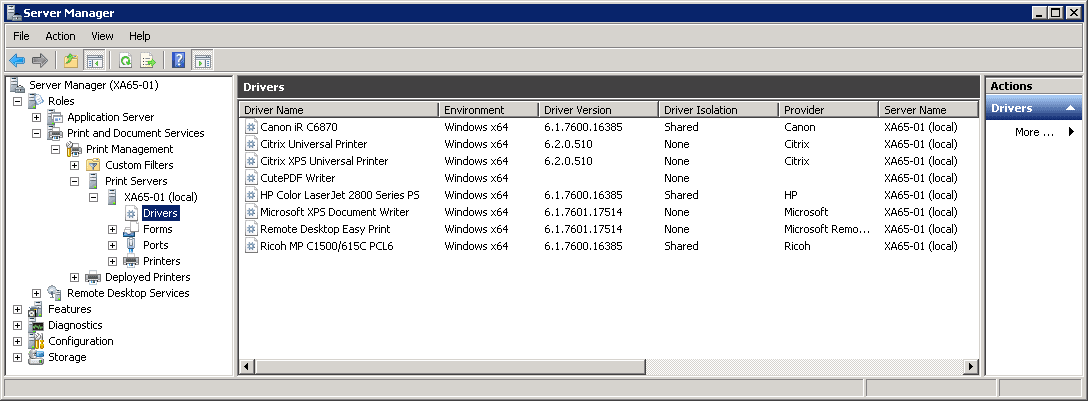
Many people are wondering where the Printer Management node used for replicating print drivers is located in Citrix XenApp 6.x. This is now managed with the Windows Printer Management Role in Windows Server 2008 R2 or through XenApp PowerShell Cmdlets. I’m a big fan of the Citrix Universal Printer Driver but in some cases that’s not good enough and replicating print drivers to all Citrix XenApp servers are required. Luckily there’s light in the end of the tunnel.
Citrix Universal Print Server Tech Preview is available and will most likely be released at Citrix Synergy 2012. The Citrix Universal Print Server Technical Preview extends XenApp 6.5 and XenDesktop 5.5 Universal printing support to network printing. This feature eliminates the need to install numerous network printer drivers on XenApp and XenDesktop hosts, and enables more efficient network utilization. The new Citrix Universal printer driver supports direct network printing on Windows and non-Windows clients.
So while we wait for this new Citrix Universal Print Server, here’s the steps for replicating print drivers with XenApp PowerShell Cmdlets :
First you’ll need to decide which Citrix XenApp server you’ll be using as the source. A good suggestion would be your Preferred Data Collector. In our example that would be XA65-01. Start PowerShell as Administrator and run the following commands
- Set-ExecutionPolicy RemoteSigned
- Add-PSSnapIn Citrix.*
- Get-XAPrinterDriver –Servername XA65-01

This will display a list of all the locally install printer drivers on that particular server. The simplest way to install a lot of printer drivers is to connect to your print server and select to connect to the printers you need.

Now rerun the command : Get-XAPrinterDriver –Servername XA65-01

To make sure that all your Citrix XenApp servers have the same printer drivers it’s recommend to add the required printer drivers to the Auto-Replication-List. A good tip would be to have these commands in a Notepad file to make it easier for you to Add/Remove printer drivers.

Simply copy and paste the commands to the PowerShell window.
Add-XAAutoReplicatedPrinterDriver “Print Driver Name” -SourceServerName XA65-01

To display a list of Printer Drivers in the Auto-Replication-List you’ll use the following command :
Get-XAAutoReplicatedPrinterDriver
I’m pretty sure there’s some smart people out there in the Citrix Community who have already created some smart automatic scripts for replicating print drivers in Citrix XenApp 6.x. Please share with the rest of the readers by adding your comment below if you know any good resources.
Resoures :
The PowerShell code below could be taken as a start for a scripted/automated solution to add printer driver names to the replication list.
Copy the code in notepad, fill in the driver names that shouldn’t be added to the replication list ($ExcludedDriverList parameter), and save the code as .ps1 file
Btw, I didn’t test it. Therefore take care 😉
===
param (
$CitrixServer = $env:COMPUTERNAME,
$ExcludedDriverList = @{“…”, “…”}
)
Add-PSSnapin Citrix* -ErrorAction SilentlyContinue
Get-XAPrinterDriver –Servername $CitrixServer | ForEach-Object {
if ($ExcludedDriverList -notcontains $_.DriverName) {
Add-XAAutoReplicatedPrinterDriver $_.DriverName -SourceServerName $_.ServerName
}
}
===
Awesome Frank, thank you very much
The Site worked for me.
Thanks a lot for sharing.
To enumerate printerdrivers installed on your server I advice the tool mentioned in the Citrix article CTX116474
It works fine and has done a lot of work for me.
Thank you for the above article (replicating print driver)
Great find, thanks for sharing Theo
When does auto replication happen? If I delete a problem driver on a server (and the driver is in the auto replication list with a source server) when does the driver replicate? Can I force that process through a PowerShell command? I actually wanted to replicate several printers that were deleted. I don’t want to type each driver name using the Start-XAPrinterDriverReplication command. I just want all drivers to replicate to the server that they are missing from. Is that how it works or am I missing something?
I did figure out that I could use a wildcard value for the driver name which worked in this instance as follows: Start-XAPrinterDriverReplication -drivername “Canon*” -servername wcxaxx
I would still like to understand how the auto replication process works with my questions above. Also, can I change the overwrite value after a driver has already been added to the auto replication list?
To delete printer drivers you can use a tool like Print Detective http://support.citrix.com/article/CTX116474
Also take a look at this post for an automatic solution
https://www.xenappblog.com/2012/adding-printer-drivers-from-print-server-using-powershell/
Trond-
Thank you for the response, but that doesn’t really answer the questions that I asked. I don’t have a problem deleting the drivers. My questions: When does autoreplication happen if there is a change? Can I force the replication? Can I change the overwrite value without re-adding a driver to the auto-replication list? Any ideas?
Jennifer
They’re replicated automatically, normally 5-15 minutes. You will also see that this happens when the server restarted.
And if you don’t like typing, you can use this;
http://www.gourami.eu/products/xenapp-printer-driver-manager
It’s a GUI to manage the printer drivers.
(it’s free optional donation)
Thanks Dennis, got confused the first time I check since price says 25 euro, but see now that the License type is free. Thanks for sharing.
This is a great tool only the error message “cannot invoke this function…” is confusing – but it works anyway. Thank you for this hint!
Hello to all people! 🙂
I have a question for powershell freaks! I am developing a tool that does the live much more easier for Xenapp administrators… The tool consists mainly in two features:
– Asking to farm what driver is installed in what server
– Manage drivers of the farm (replicate a specific driver and remove specific driver)
I have built the first feature at 100% and de second feature at 50%, on the second feature I am using the following powershell command with arguments:
Start-XAPrinterDriverReplication -DriverName “Driver name with spaces” -SourceServerName source_server -TargetServerName destination_server
When I directly type this command in the powershell console it works perfectly, replicating the driver in one minute. But when I execute the command through powershell script with variables it doesn’t work, I am using the following command:
$printdriver = ‘”‘ + $printdriver + ‘”‘
Start-XAPrinterDriverReplication -DriverName $printdriver -SourceServerName $srvname -TargetServerName $destserver
And the script is reporting me the following error:
Start-XAPrinterDriverReplication : Cannot find driver “KONICA MINOLTA C652SeriesPCL” (0x80320007) At C:\Admin\SupportSDK\CAROJO\CitrixInstalledPrinters\GUI\fmngoptrep4.ps1:123 char:36
+ Start-XAPrinterDriverReplication <<<< -DriverName $printdriver -SourceServerName $srvname -TargetServerName $destserver
+ CategoryInfo : ObjectNotFound: ("KONICA MINOLTA C652SeriesPCL":String) [Start-XAPrinterDriverReplication], CitrixException
+ FullyQualifiedErrorId : EnumFarmDrivers,Citrix.XenApp.Commands.StartPrinterDriverReplicationCmdlet
As a information, the driver is installed on the server, and the same command is working if I launch it directly in the powershell console… There is a bug with start-xaprinterdriverreplication? or how is the correct way to put this command in a powershell script?
I think that the issue is within the quotes and spaces in the driver name…
Thank you very much for your help!!